VisitKit step by step: from a booking page to the first booking
VisitKit lets clients book with you on their own: they open your link, pick a service and a free time, and you get a notification in Telegram. Setting it up takes a few minutes.
1. Create a booking page
Open VisitKit in Telegram and tap “Create a booking page”. Enter the name clients know you by and a few words about what you do. If clients come to you, fill in the “Address”: they see it on the page, in the reminders and in their calendar. The link name is made from your name, and you can change it; check the time zone.
2. Add services and working hours
Tap “Add a service”: a title, how long it takes and, if you like, a price. Then, in “Settings”, set your “Working hours” for each day of the week and your “Days off”. Clients see only the free times of the next 30 days.
3. Share your link
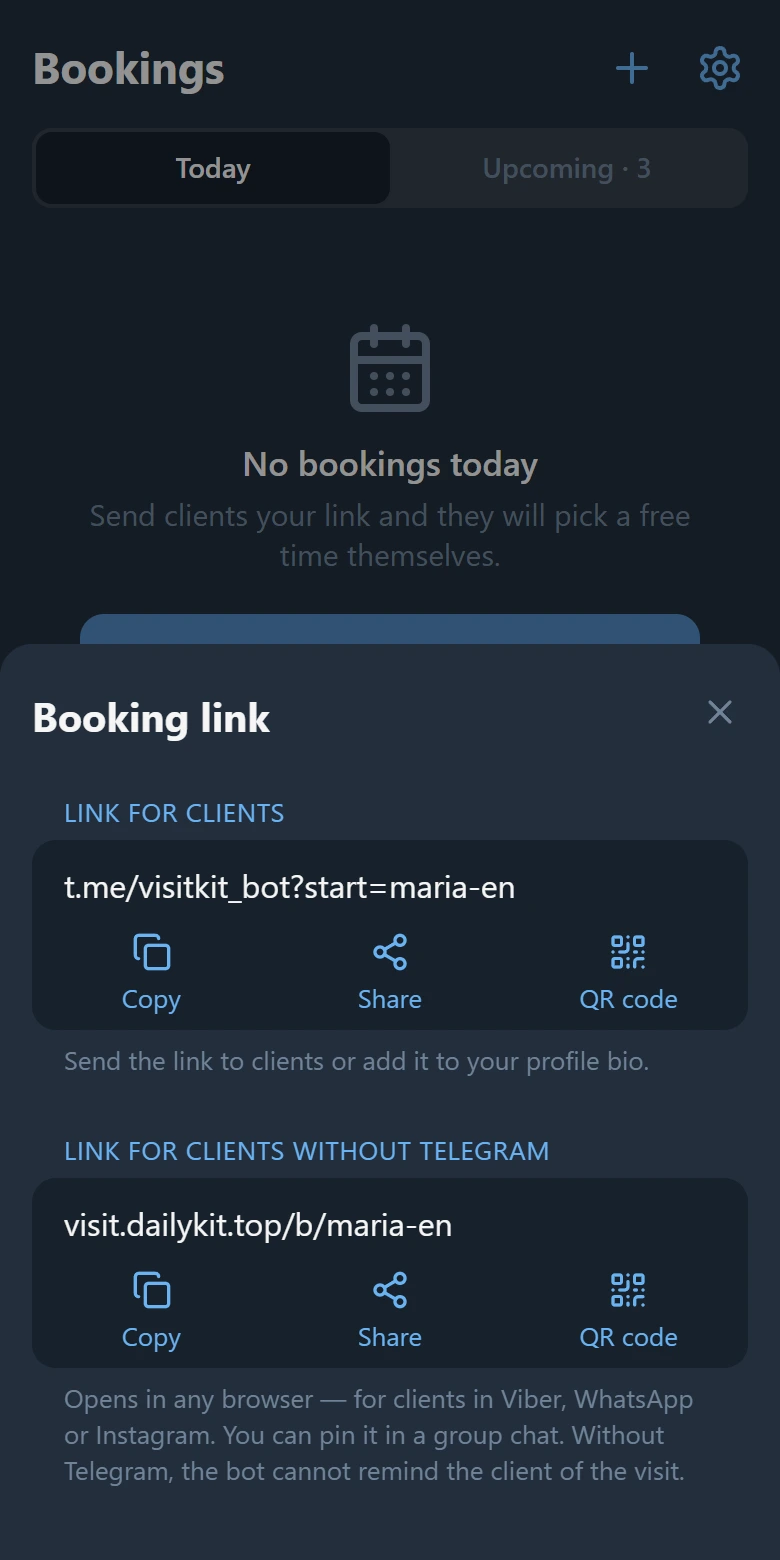
Under your bookings, tap “Share the booking link”. Three ways lead to the same page:
- the link for Telegram: send it in a chat, put it in your bio or print its QR code;
- “Send a booking card to a chat”: a message with a booking button goes to your group or channel; pin it, and clients book from there;
- the “Link for clients without Telegram”: for Viber, WhatsApp or Instagram; the page opens in any browser, in the client’s language.
4. How a client books
The client picks a service, a day and a free time, then leaves a name and a phone number. In Telegram the phone may be left out: the bot confirms the booking and reminds of it a day and two hours before. The client can cancel on their own, and the time is free again.
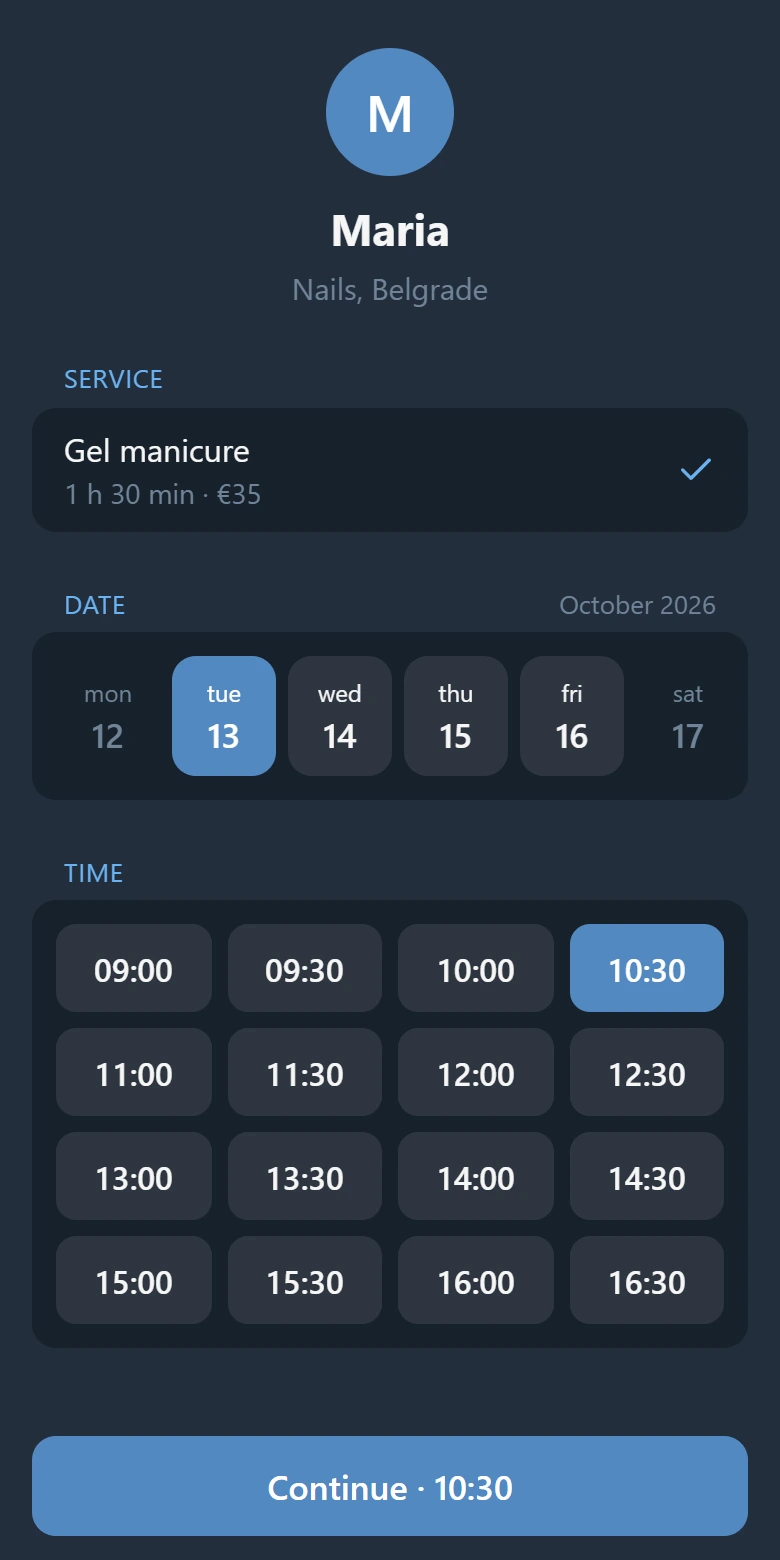
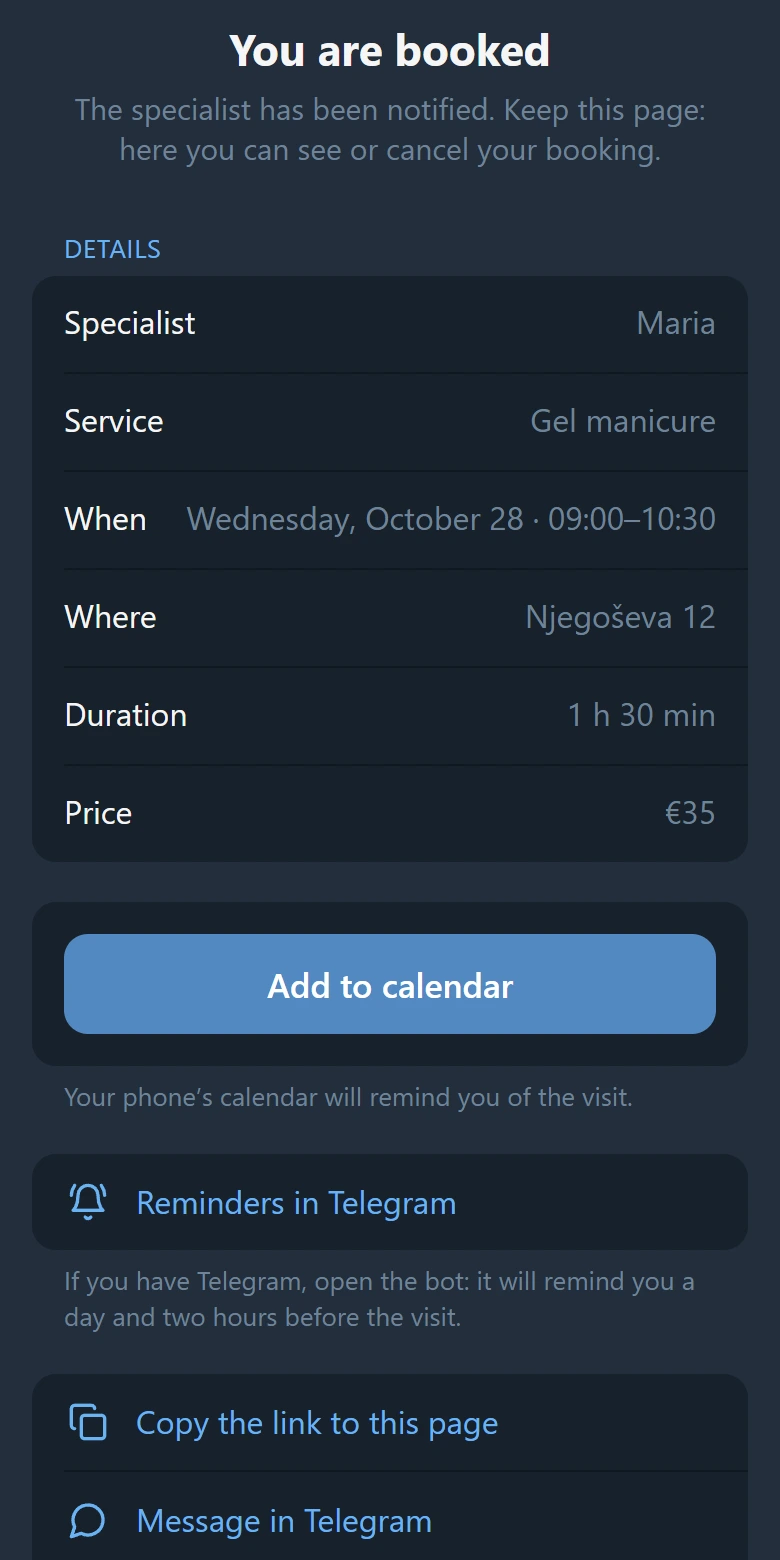
A client without Telegram books the same way in a browser, and there the phone number is required. They get a page of the booking with an “Add to calendar” button: the phone’s calendar reminds them of the visit.
5. Your bookings
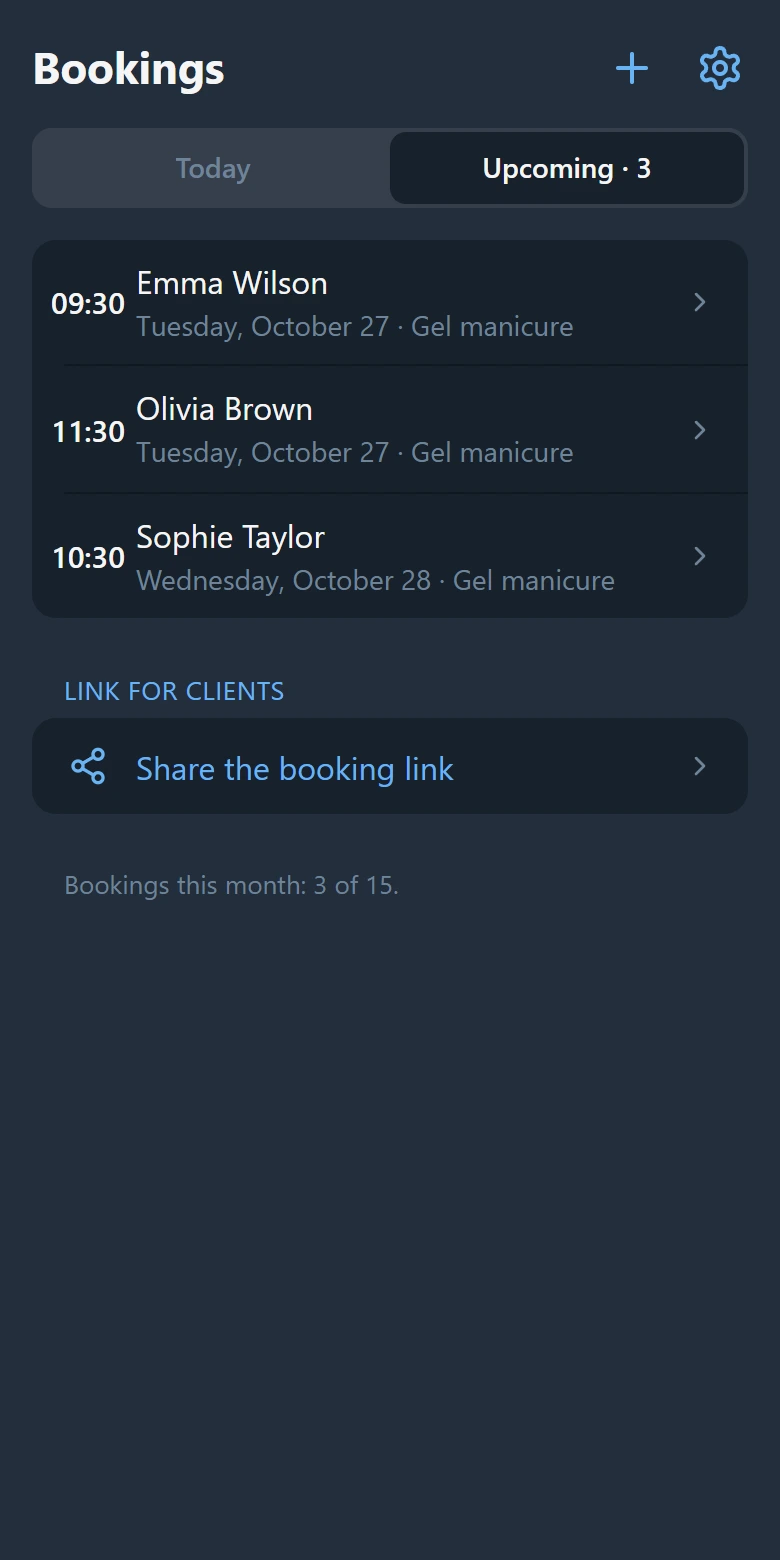
The bot writes to you in Telegram about every new booking and every cancellation. In the app, “Today” and “Upcoming” list your bookings; tap one to see the client’s phone number, write to them in Telegram, mark the visit done or cancel it.
In the bot’s messages and in the app, the client’s name opens a chat with them if they booked in Telegram.
6. The day’s summary and reminders
Every morning at 8:00 the bot sends the day’s bookings, if there are any. You can turn the summary off in “Settings” → “Notifications”. There you also tick when to be reminded of each booking: “1 hour before”, “30 minutes before” or “15 minutes before”; you can choose several.
7. Bookings in your calendar
In “Settings” → “Calendar”, tap “Sync with your calendar”. On iPhone and Mac, tap “Add to Apple Calendar”: your bookings appear in Calendar and update every 15 minutes. Google adds a calendar by link only on a computer: open VisitKit’s settings in Telegram Desktop and tap “Add to Google Calendar”; Google updates such a calendar every few hours. The calendar shows clients’ names and phone numbers, so don’t share the link. If it went to the wrong place, tap “Turn off sync” and turn sync on again: the old link stops working.
8. Clients who book by phone, and breaks
The “+” button (“New entry”) puts a client who called you or came in person into your calendar, and that time is taken on the page too. “Close time” blocks an hour for lunch or an errand.
9. The plan
For its first 2 months a new page has Pro as a gift. After that, up to 15 bookings a month are free, and Pro removes the limit: 200 Stars a month (about $4) or 1800 Stars for a year, paid right in Telegram. Calendar sync is part of Pro.
Open VisitKit in Telegram and create your page: it is free to start.